

The PopCash website approval process is fast, free, and open to publishers of all sizes – no minimum traffic required. Welcome to the PopCash Publisher Help Center! This guide walks you through every step: how to add your website to PopCash, what happens during the PopCash website approval review, and how to get your ad code live in minutes.
TL;DR Add your site via the Publisher dashboard, select its category, and submit for review. Approval takes under 1 hour on business days. Once approved, generate your ad code and paste it before the closing body tag - or use the WordPress plugin for a one-click setup.
Step 1: How to Add Your Website to PopCash
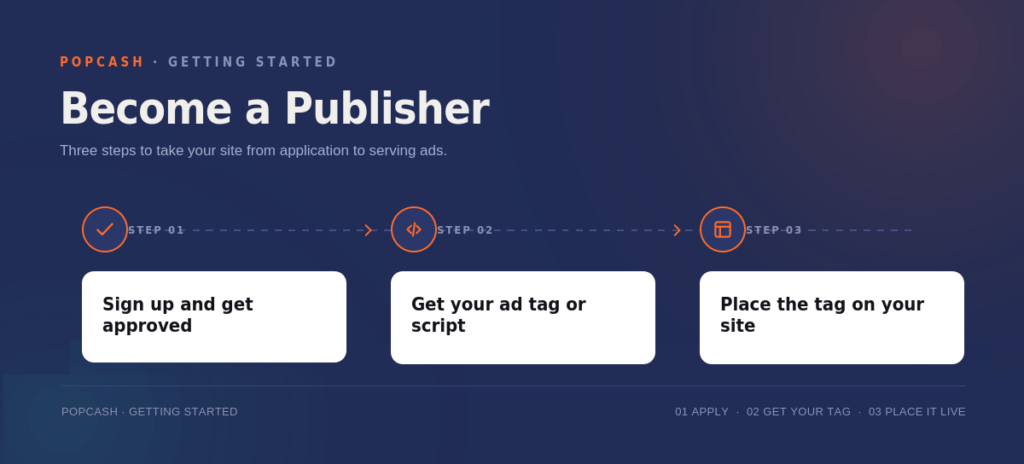
Integrating your domain into the PopCash network is the first step in the PopCash website approval process. Follow these instructions to get started:
- Log In to Your Dashboard: Access your PopCash Publisher account. If you don’t have one, the registration process is quick and easy.
- Go to the “Websites” Section: Locate the Websites tab on the left-hand navigation menu.
- Click “Add New Website”: You will find this button at the top right of your screen.
- Enter Your Site Details:
- Domain: Enter your exact URL (e.g., yoursite.com).
- Category: Select the niche that best fits your content (e.g., Entertainment, Streaming, Gaming). Accurate categories ensure higher eCPM by serving relevant ads.
- Adult Content: If your site contains 18+ material, you must check the “Adult Content” box. This ensures compliance and prevents account suspension.
- Submit for Review: Click “Add Website”. Your domain will now show a “Pending” status while our team performs a manual check.
Step 2: The PopCash Website Approval Process
At PopCash, we maintain a high-quality network for both publishers and advertisers. To ensure safety and performance, every PopCash website approval undergoes a manual review by our compliance team – keeping the network clean for advertisers and premium for publishers.
How Long Does the PopCash Website Approval Take?
We value your time. Our team works around the clock to ensure the fastest turnaround in the industry:
- Business Days (Mon – Fri): Most websites are reviewed and approved within 1 hour.
- Weekends & Holidays: Approvals typically take no longer than 12 hours.
PopCash Website Approval Requirements & Guidelines
PopCash is highly inclusive – the PopCash website approval process welcomes publishers from all niches. We have no minimum traffic requirements, making us the perfect partner for small blogs and massive platforms alike. We accept a wide range of niches, including mainstream, adult, and dating.
However, your website will be rejected if it contains:
- Illegal content, child pornography, or necrophilia.
- Hate speech, violence, or discrimination (race, gender, orientation).
- Copyright-infringing material or illegal file sharing.
- Broken links (404 errors) or non-functional landing pages.
Step 3: Generating and Placing Your PopCash Ad Code
Once your PopCash website approval is confirmed via email, it’s time to go live.
- Open the Code Generator: Navigate to the “Get Code” section in your dashboard.
- Select Your Domain: Choose your newly approved website from the dropdown list.
- Generate Snippet: Click the button to create your unique JavaScript ad code.
- Integration: Copy the code and paste it into your website’s HTML. For the best performance, place the code immediately before the closing </body> tag.
💡 WordPress User? You can skip the manual coding! Simply use the Official PopCash WordPress Plugin for a one-click setup.
How PopCash Website Monetization Works
Once active, PopCash serves a high-quality popunder advertisement to your visitors once every 24 hours.
This ensures a perfect balance: you maximize your revenue while your users enjoy an uninterrupted browsing experience.
Need Help with Your PopCash Website Approval?
If your PopCash website approval is still pending after 12 hours, or you have questions about a rejection, our dedicated support team is ready to help. You can also explore our popunder ads guide and publisher monetization guide for tips on maximizing your revenue. We offer 24/7 support via Email and Teams to help you optimize your earning potential.
Ready to run your first popunder campaign? The PopCash network gives you access to global popunder traffic with full targeting control, transparent CPM pricing, and a low minimum deposit to get started.
